Keyboard Shortcuts
To work more efficiently, keyboard shortcuts exist for many of
the functions used on a daily basis. While individual shortcuts
are mentioned throughout the manual in the chapters where they
are most relevant, this chapter provides a thorough reference of
all available shortcuts in one place.
Transport & Playback
|
COMMAND
|
KEY
|
| Play / Stop |
Space Bar |
| Return to Zero |
Z or Return |
| Back One Frame |
← |
| Back One Second |
Option & ← |
| Back Five Seconds |
Shift & ← |
| Forward One Frame |
→ |
| Forward One Second |
Option & → |
| Forward Five Seconds |
Shift & → |
| Stop |
Number Pad 0 |
| Play |
Number Pad . |
| Toggle Sync |
Command & L |
| Toggle Pre/Post Roll |
P |
| Play Mode: Single Play / Loop Play |
Control & Click Play Button |
| Move Playhead to Timeline Selection Start |
↑ |
| Move Playhead to Timeline Selection End |
↓ |
Shuttle (Numpad)
|
COMMAND
|
KEY
|
| Reverse 0.5x |
Number Pad 1 |
| Forward 0.5x |
Number Pad 3 |
| Reverse 1x |
Number Pad 4 |
| Forward 1x |
Number Pad 6 |
| Reverse 4x |
Number Pad 7 |
| Forward 4x |
Number Pad 9 |
Nudge Selection
|
COMMAND
|
KEY
|
| Nudge Selection Earlier One Frame |
, |
| Nudge Selection Later One Frame |
. |
| Nudge Selection Start Earlier |
Control & , or
Option & Numpad -
|
| Nudge Selection Start Later |
Control & . or
Option & Numpad +
|
| Nudge Selection End Earlier |
Option & , or
Command & Numpad -
|
| Nudge Selection End Later |
Option & . or
Command & Numpad +
|
Event Creation
|
COMMAND
|
KEY
|
| New Streamer |
S |
| New Marker |
M |
| New Flutter |
F |
Event Navigation & Editing
|
COMMAND
|
KEY
|
| Go to Event In Point |
I |
| Go to Event Out Point |
O |
| Set Selection In as Event In Point |
Shift & I |
| Set Selection Out as Event Out Point |
Shift & O |
| Select Previous Event |
Command & ← |
| Select Next Event |
Command & → |
| Go To Event |
Command & G |
| Duplicate Selected Events |
Command & D |
| Merge Selected Events |
Command &
Option & M
|
| Split Selected Event at Playhead |
Command &
Option & S
|
| Toggle Event Edit Mode |
G |
| Delete Event(s) |
Delete or Backspace
|
Edit
|
COMMAND
|
KEY
|
| Cut Regions at Selection |
B |
| Place Region at TC |
Shift & P |
| Mute / Unmute selected Events and/or Media Regions |
Command & M |
| Scrub Audio |
Control & Drag Left/Right over an
Audio Region or Marker Track
|
| Scrub Trim Event Start |
Control & Drag Left/Right on event
start
|
| Scrub Trim Event End |
Control & Drag Left/Right on event
end
|
View & Zoom
|
COMMAND
|
KEY
|
| Zoom In Horizontally |
T |
| Zoom Out Horizontally |
R |
| Toggle Time Overlay |
Command & T |
| Toggle Overlays Globally |
Command &
Shift & B
|
| Zoom In/Out Horizontally |
Option & Scroll |
| Relatively Increase height of selected tracks |
Control & ↑ |
| Relatively Decrease height of selected tracks |
Control & ↓ |
Timeline Navigation
|
COMMAND
|
KEY
|
| Move Playhead to Next Region or Event Boundary |
Tab |
| Move Playhead to Previous Region or Event Boundary |
Option & Tab |
| Expand Selection to Next Region or Event Boundary |
Shift & Tab |
|
Expand Selection to Previous Region or Event Boundary
|
Option & Shift &
Tab
|
File
|
COMMAND
|
KEY
|
| New Project |
Command & N |
| Open Project |
Command & O |
| Save Project |
Command & S |
| Save Project As |
Command &
Shift & S
|
| Add Media to Project |
Command &
Shift & O
|
| Add New Timeline |
Command &
Shift & N
|
| Import Events from File |
Command &
Shift & I
|
| Batch Export Events |
Command &
Shift & E
|
Window Toggles
|
COMMAND
|
KEY
|
| Audio Settings |
Shift & A |
| Event List |
Shift & L |
| Video Fullscreen |
Command &
Shift & F
|
| Mini Player |
Command &
Shift & M
|
| Preferences |
Command & , |
| Close Window |
Command & W |
Event List Window
|
COMMAND
|
KEY
|
| Edit Text |
T |
| Select Previous Event |
↑ |
| Select Next Event |
↓ |
| Edit Event Text |
Return or T |
| Delete Selected Event(s) |
Backspace |
| Expand Selection by Next Event |
Shift & ↓ |
| Expand Selection by Previous Event |
Shift & ↑ |
| Select All Events |
Command & A |
| Expand Event Selection to include the First Event |
Command &
Option & A
|
| Expand Event Selection to include the Last Event |
Command &
Shift & A
|
System-Wide Shortcuts
System-wide shortcuts (often referred to as hotkeys) function
even if Video Sync is not the frontmost application.
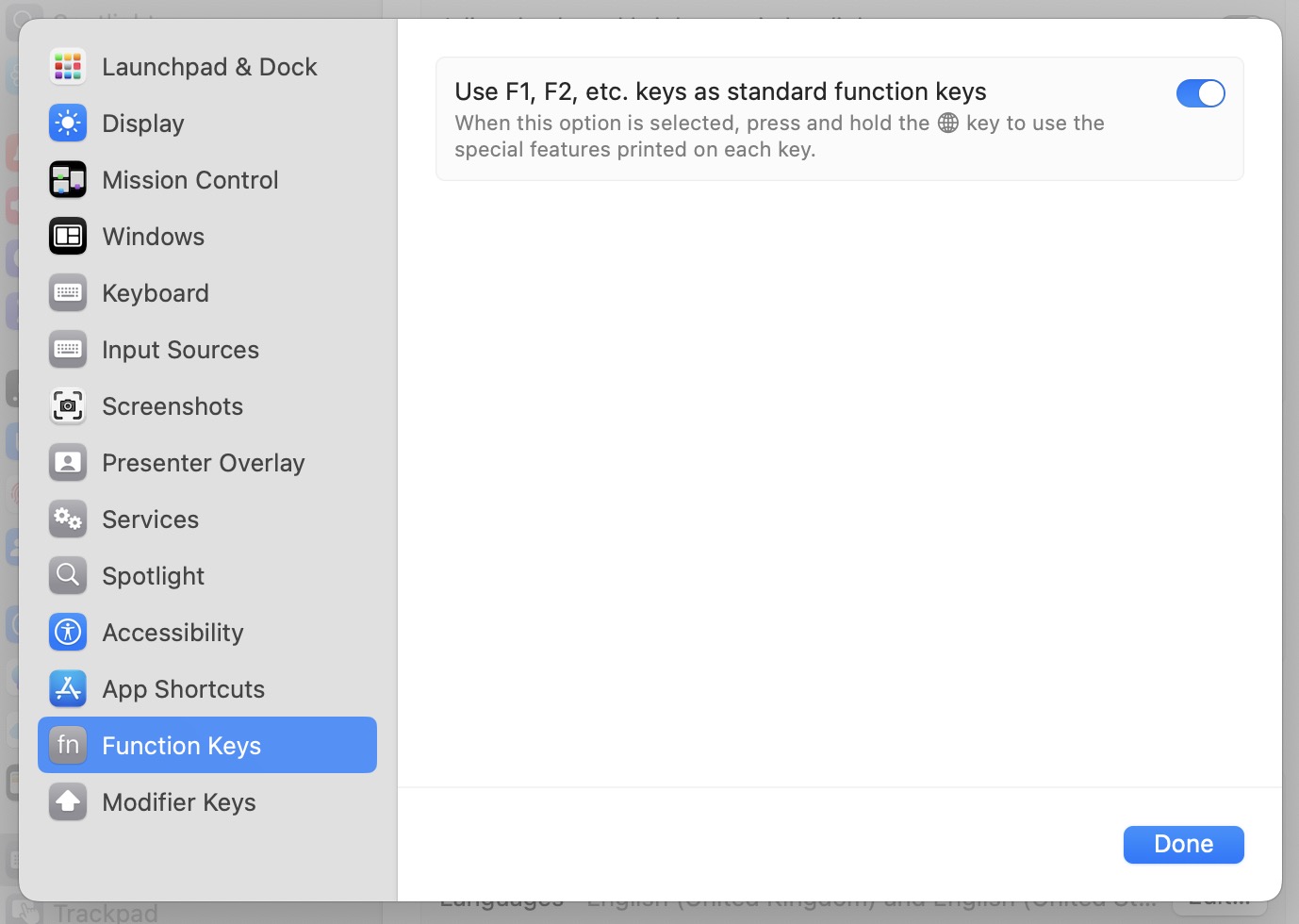
System-wide shortcuts that use F keys (e.g.,
Command & F5) require that
the Mac's F keys are configured to act as standard function keys
rather than special keys (for controlling display brightness,
volume, etc.).
This setting can be found in System Settings →
Keyboard → Function Keys. If
this setting is disabled, the Fn key would need
to be pressed in addition to the shortcut (e.g.,
Command & Fn &
F5).
The Enable system-wide shortcuts preference can
be found in Preferences / Settings →
MISC.
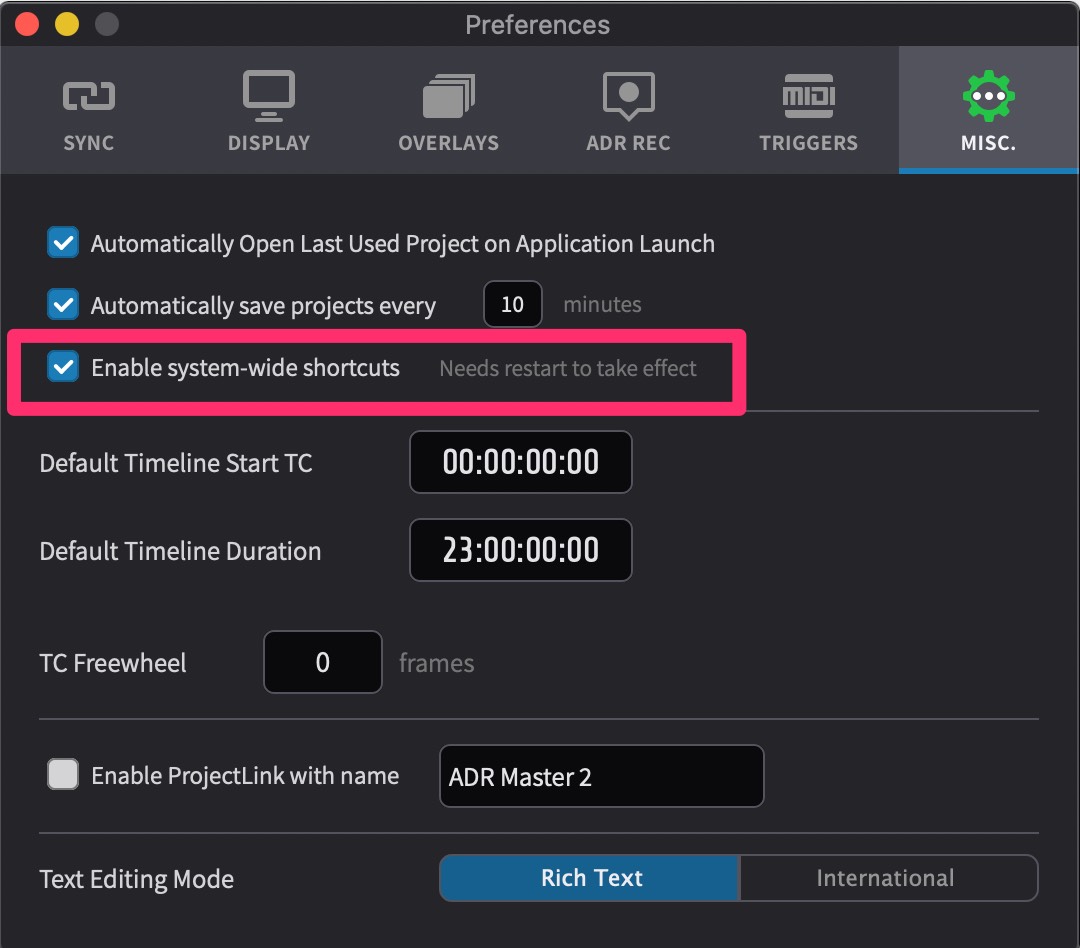
As these shortcuts are not customisable, it is possible that
they interfere with existing shortcuts in other apps. Unticking
this checkbox will disable them completely. A restart of Video
Sync is required for the changes to take effect.
|
COMMAND
|
KEY
|
| Select Previous Event |
Command & F5 |
| Select Next Event |
Command & F6 |
| Set Playhead as Event In |
Command & F9 |
| Set Playhead as Event Out |
Command & F10 |
| Go to Event In |
Command & F11 |
| Go to Event Out |
Command & F12 |
| Split Selected Event at Playhead |
Command & F13 |
| Toggle Overlays Globally |
Command & F14 |
| Open Go To Event Window |
Command & F15 |
| Select Previous Event by Cue Number |
Option & F1 |
| Select Next Event by Cue Number |
Option & F2 |
| Expand Selection by Previous Cue |
Option & F3 |
| Expand Selection by Next Cue |
Option & F4 |
